 Macify
 Documentation
Macify gives Windows 11 the look and feel of macOS 27 Golden Gate: a Dock, a menu bar, Control Center, Notification Center, Spotlight, Finder, an App Switcher, Mission Control, banners and alerts, all on real Liquid Glass drawn over the live desktop.
It is one program, macify.exe, with a small watchdog next to it. It does not patch Windows or replace system files: it hides the taskbar while it runs, reserves the top and bottom of the screen for the menu bar and the Dock, and gives everything back when it quits.
Install
- Download
Macify-1.0.5.exefrom the download section or from the releases. - Run it. Windows SmartScreen may say the publisher is unknown: choose More info › Run anyway.
- Pick the setup's language (English, Russian or Ukrainian) and follow it. Macify starts when it is done.
What the setup does
- Installs for the current user only, into
%LOCALAPPDATA%\Macify. No administrator rights are needed. - Stops a running Macify first, so an update installs over it in place.
- Installs the SF Pro Text fonts (Medium, Semibold, Bold) for your account, unless they are already installed. Without them Macify uses Segoe UI Variable.
- Installs
macify-guard.exe, the watchdog that puts the taskbar back if Macify ever crashes. - Downloads Microsoft Edge WebView2 if Windows does not have it yet (Windows 11 normally does). The Visual C++ runtime is built in.
Requirements
| Item | Needed |
|---|---|
| System | Windows 11, 64-bit |
| Graphics | A Direct3D 11 GPU (any GPU from the last ten years, integrated ones too) |
| Rights | A normal user account |
| Disk | About 40 MB |
First steps
When Macify starts, the Windows taskbar steps aside. The menu bar runs along the top of the screen, the Dock sits at the bottom, and maximized windows fit between them.
- Open an app: click it in the Dock, open Apps (the second icon of the Dock), or press Alt Space for Spotlight and type its name.
- Pin an app: right-click it in the Dock › Keep in Dock. Drag icons to reorder them; drag one up and away to remove it.
- Change things: open Settings from the Dock, from the Apple menu (› System Settings…) or from the Macify tray icon.
- Quit: Apple menu › Quit Macify, or the tray icon. Windows comes back exactly as it was.
- Start with Windows: Settings › General › Open at login.
Update and uninstall
Update: download the newer setup and run it. It stops Macify, replaces it and starts it again; your settings, pinned apps and icons stay.
Uninstall: Windows Settings › Apps › Installed apps › Macify › Uninstall. The uninstaller stops Macify and puts the system back first (taskbar, work area, anything left from a crash), then removes the program. The fonts stay, other programs may use them. Your settings stay in %APPDATA%\Macify until you delete the folder.
Safety and recovery
Macify only changes things it can put back, and writes down each change before it makes it (the rollback journal), so even a crash can be undone.
| If… | Do this |
|---|---|
| Something goes wrong while Macify runs | Press Ctrl Alt Shift Esc: the emergency exit closes Macify and restores everything. |
| Macify crashed | Nothing to do: the watchdog macify-guard.exe notices it and puts the taskbar and the work area back. |
| The taskbar is still missing | Run %LOCALAPPDATA%\Macify\macify.exe --restore from a command line or the Run box (Win R). |
The taskbar keeps the auto-hide setting you had. If it was set to always show, Macify puts it back in place when it quits; you do not have to move the pointer over it first.
Liquid Glass
Every bar, panel and menu of Macify is Liquid Glass: a material that bends, lights and softens what is behind it. It is drawn on the GPU over a live capture of the desktop, with the numbers of macOS 27.2.1's own glass: an inner refraction of −60 over 16.7 pt and an outer one of +44.8 over 28 pt along the edge, a 1 pt rim lit by a key light from the upper left and a fill light from the other side, a little chromatic dispersion, and a soft shadow.
- Clear or Tinted: Settings › Appearance › Liquid Glass. Clear is see-through; Tinted is more opaque and easier to read over busy wallpapers.
- Reduce Transparency (Settings › Accessibility) turns glass into a matte fill.
- Increase Contrast gives glass an outline and a stronger tint.
- In Finder and Settings the glass is in the controls: the toolbar's capsules bend the content that scrolls under them, and switches and slider knobs turn into magnifying glass lenses while you hold them, as in iOS 26.
Dock
The Dock holds Finder, Apps, your pinned apps, recently used apps, the apps that are open, and the Trash. It magnifies under the pointer along the same fisheye curve as macOS 27.
Using it
- Click an app to open it. If it is open, its windows come forward; if its only window is already in front, it minimizes.
- Right-click an app for its windows, New Window, Keep in Dock (or Remove from Dock), Quit and Dock Settings….
- Drag pinned icons to reorder them. Drag one up out of the Dock and let go to remove it (it disappears in a puff).
- Finder (first icon) opens Macify's Finder or File Explorer, your choice (Settings › Desktop & Dock › Finder icon opens). Apps (second icon) opens the Apps view or the Start menu.
- Trash shows whether the Recycle Bin is empty; click it to open it, right-click › Empty Recycle Bin.
- Opening apps bounce until their window appears (Animate opening applications).
- The Dock steps out of the way of fullscreen games and videos and comes back after them. Magnified icons always stay above other always-on-top windows.
Settings
| Setting | What it does |
|---|---|
| Size | 60–160 % of the standard size. |
| Magnification, strength | On or off, and how big icons grow under the pointer (1.0–2.2×, default 1.7×). |
| Automatically hide and show | The Dock slides off the bottom edge and comes back when the pointer touches it; windows then use the whole height. |
| Indicators | A dot under every open app. |
| App names on hover | A glass label above the icon under the pointer. |
| Suggested and recent apps | Keeps recently used apps that are not pinned. |
| Hover influence range | How far from the pointer icons still grow (60–360 px). |
| Icon spacing | The gap between icons (4–28 px). |
| Glass frost | How much the Dock's glass scatters the desktop behind it. |
Icon styles
Like iOS 18's Customize sheet, the Dock can restyle every icon. Settings › Desktop & Dock › Icons has three choices that combine:
| Choice | Options |
|---|---|
| Icon style (tone) | Default: the apps' own icons. Light: light tiles; a white symbol on a coloured plate takes the plate's colour. Dark: near-black tiles; the artwork keeps its colours, dark symbols turn light. |
| Clear (Liquid Glass) | See-through tiles. Each tile is a lens set into the Dock's glass: it bends and dims what is behind it, and the symbol is white (dark on a Light tile). |
| Tinted | Every symbol in one colour, chosen with Tint colour (hue) and Tint strength (saturation). |
Examples: Dark + Clear gives darker glass with white symbols; Light + Clear light frosted glass with dark symbols; Clear + Tinted glass tiles with coloured symbols; Light + Tinted light tiles with deep-coloured symbols. Finder and Apps use their drawn symbols in the Clear and Tinted styles.
The styles are computed from each app's own icon, so unusual icons may come out less clean than Apple's hand-made ones. You can always give an app an icon of your own.
Menu bar
The menu bar shows, from the left: the Apple menu, the name of the app in front and its menus, and on the right the input language, the status icons of your tray apps, Wi-Fi, Volume, Control Center, Spotlight and the clock.
- Apple menu: About This PC, Windows Settings, System Settings (Macify's), Control Center, App Store, Force Quit, Sleep, Restart, Shut Down, Lock Screen, Log Out and Quit Macify.
- App menus: when the app in front has a real menu bar of its own, Macify shows it; otherwise File, Edit, View and Window with the usual shortcuts (New Window, Copy, Paste, Zoom, Tile Left/Right, Mission Control…).
- Tray icons of other apps sit in the menu bar; click or right-click them as on the taskbar.
- Clock: click it for the Notification Center. Settings › Menu Bar: show the date, show seconds, 24-hour clock.
- Volume icon: opens the Sound panel.
Control Center
The Control Center icon (two switches) opens separate pieces of glass:
- Wi-Fi and Bluetooth: turn them on or off with the round button; click the piece for Windows' settings.
- Nearby Sharing, Focus (Do Not Disturb settings).
- Now Playing: what plays, with previous, play/pause and next.
- Mission Control, Screenshot mode, Appearance (light ↔ dark in one click) and a Dock shortcut to its settings.
- Display: the brightness of laptop screens and monitors that support it.
- Sound: the volume; the button at its end opens the Sound panel.
Scroll over the Display or Sound piece to change it; Tab and the arrow keys move between controls.
Sound
The Volume icon in the menu bar opens the Sound panel:
- Sound: the output's level and a mute button. The gear opens Windows' sound settings.
- Output and Input: the speakers and the microphone in use. Click either to see the others and pick one; Windows switches to it for everything (games, calls and media alike). The Input list also has the microphone's level.
- Apps: every app that plays sound, with a live level meter and its own slider. Click its icon to mute it. A browser's tabs are one row.
Notifications
Banners
With Settings › Notifications & Sounds › Macify notifications on, the notifications of other programs appear as Macify banners in the top right corner instead of Windows' own. Click a banner to open what it is about.
Notification Center
Click the clock. On the right edge of the screen: the notifications shown so far (Clear empties the list) and widgets: the date, an analog clock, a calendar you can page through, and a notes field that saves itself. Click outside or press Esc to close it.
Interface sounds
Short sounds for the Trash, screenshots and notifications: Settings › Notifications & Sounds › Interface sounds.
Dynamic Island
A black island at the top of the screen that comes alive when something happens:
- Now Playing: artwork, title and a waveform that follows the music; click to expand for the controls.
- Calls: Discord, Telegram, Teams and other call apps that use the microphone, with a mute button.
- Volume: instead of Windows' volume pop-up.
- Devices: headphones or speakers connecting.
| Setting | What it does |
|---|---|
| Hide when idle | Hide the island completely while nothing is going on. |
| Hide Windows volume popup | The island shows the volume instead. |
| Show calls | Discord, Telegram, Teams and others. |
| Show over fullscreen apps | Keep the island visible over fullscreen programs. |
| Artwork glow | A soft glow in the colours of the artwork. |
| Explicit badge | Looks songs up online to show the E badge. |
| Compact style | Inline, Stacked or Minimal. |
Mission Control
Every open window as a live thumbnail in a grid. Click one to bring it forward; click the background, right-click or press Esc to close. Open it from a Hot Corner, Control Center or the Window menu. App Exposé shows just one app's windows: in the App Switcher, press ↑ or ↓ on that app.
Hot Corners
Settings › Mission Control & Hot Corners. Each corner of the screen can open Mission Control, show the desktop, open the Notification Center or the Start / Apps view when the pointer rests there.
| Setting | What it does |
|---|---|
| Top left, top right, bottom left, bottom right | The action of each corner, or none. |
| Delay | How long the pointer has to rest in the corner (0–2000 ms). |
| Require holding | Only with Alt, Ctrl, Shift or the Windows key held, so a corner never fires by accident. |
App Switcher
With Settings › App Switcher › Replace Alt+Tab on, Alt Tab shows a row of apps (not windows), like ⌘ Tab on a Mac. Keep Alt held and press Tab (or Shift Tab, ← →) to move, release to switch. A quick Alt Tab switches to the previous app without showing anything. While the row is up: Q quits the selected app, H hides it, ↑ ↓ show its windows (App Exposé), Esc cancels. Ctrl Alt Tab stays Windows' own.
| Setting | What it does |
|---|---|
| Replace Alt+Tab | Off by default, because it needs a keyboard hook. It cannot see windows of programs running as administrator. |
| HUD delay | How long before the row appears (0–1000 ms). |
| Icon size | 75–150 %. |
| Bring all windows of an app forward | Switching to an app raises every window of it, not just the last one. |
| Alt+` switches windows of the current app | Like ⌘ `. |
Tiling
Drag a window by its title bar to an edge of the screen: the left or right edge tiles it to that half, a corner to a quarter, the top edge fills the screen. A glass preview shows where it will go before you let go.
- Hold Alt to tile: tile only while Alt is held, so ordinary drags never snap.
- Margin around tiled windows: a gap of 0–40 px around tiled windows.
- The Window menu has Tile Left and Tile Right too.
Minimizing
Windows minimize into the Dock with the Genie effect (the window pours into its icon) or the Scale effect, and come back the same way. Settings › Desktop & Dock › Minimizing: turn the animation off, pick the effect, set its duration (180–800 ms).
Finder
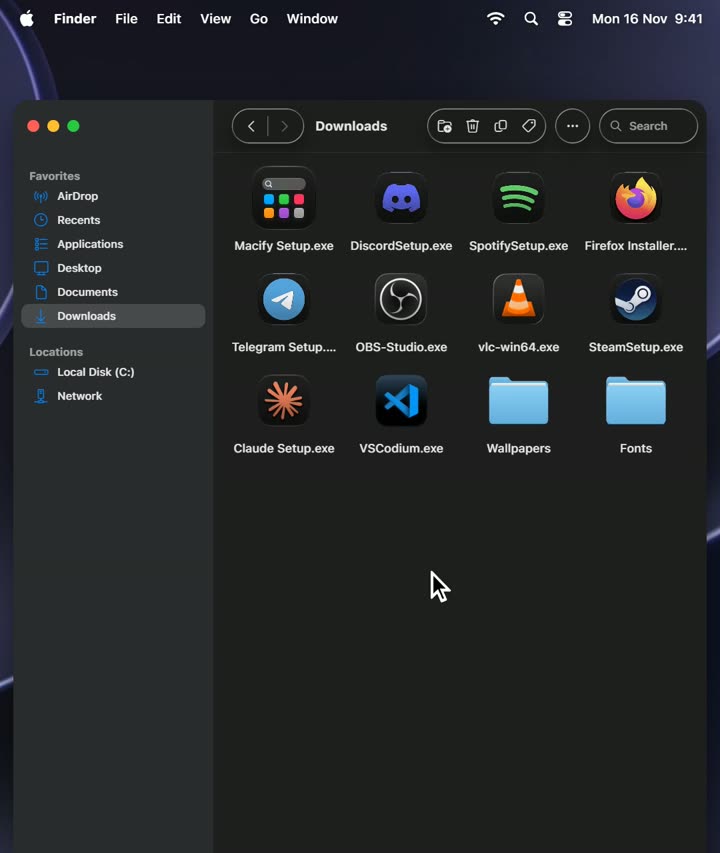
Macify's file manager, built like Finder in macOS Tahoe: a floating sidebar, a toolbar of glass capsules, and your real folders. Open it from the Dock, with Spotlight, or from any app's menu (Open a Finder window).
Views
Icons, List, Columns and Gallery (Ctrl 1–4). Finder remembers the view of each folder. The slider in the status line sets the icon size in the Icons and Gallery views.
Sidebar
- Favorites: AirDrop, Recents, Applications, Desktop, Documents, Downloads, Home, Pictures, Music, Videos, and folders you pin: drag a folder onto the Favorites title, or right-click › Add to Sidebar.
- Recents: the folders you visited last.
- Locations: your drives with how full they are, and the Trash.
- Tags: coloured tags you can give files (right-click › Tags); click a tag to see everything with it.
- Hide or show the sidebar with the toolbar button or Ctrl Shift S.
Working with files
- Tabs: Ctrl T; open a folder in a new tab with the middle button, Ctrl+double-click, or right-click › Open in New Tab.
- Path: click the folder's name or press Ctrl L to type a path; Copy Path (Ctrl Alt C) copies it.
- Preview pane (Ctrl Shift P): an image or text preview and the file's details. Quick Look: Space.
- Open in Terminal (Ctrl Alt T): Windows Terminal (or PowerShell) in that folder.
- Drag files to move them, hold Ctrl to copy. Rename with Enter or F2; Delete moves to the Trash; Ctrl Z undoes.
- Search (Ctrl F) looks through the folder and below it.
Settings
Settings › Finder: the folder new windows show, the default view, icon size, hidden files (Ctrl Shift .), file extensions, folders on top, tags in the sidebar, the path bar and the status bar.
Spotlight
Press Alt Space (or the magnifier in the menu bar) and type. Results come in groups:
- Applications: everything installed, Store apps too.
- Files and folders from Desktop, Documents and Downloads.
- Actions: Lock Screen, Restart, Shut Down, Open Settings, Open a Finder window.
- Calculator: type a sum, get the answer.
- Clipboard: recently copied text, when Clipboard history is on (kept in memory only).
The tabs at the top (All, Apps, Files, Actions, Clipboard) narrow the results. ↑ ↓ move, Enter opens, Esc closes.
| Setting | What it does |
|---|---|
| Enable Spotlight | On or off. |
| Keyboard shortcut | Alt Space, Ctrl Space or Ctrl Alt Space. |
| Search files | Desktop, Documents and Downloads. |
| Clipboard history | Off by default; kept in memory only, never written to disk. |
| Apps button opens the Apps view | Off opens the Windows Start menu instead. |
Apps
The second icon of the Dock opens a glass grid of every app on your PC, alphabetically, with a search field at the top. Click an app to open it; Esc or a click outside closes the grid.
Settings
Macify's own Settings window, built like System Settings: a search field, the Macify card (About) and the panels in four categories: System (General, Appearance, Notifications & Sounds, Accessibility), Desktop (Desktop & Dock, Menu Bar, Dynamic Island), Windows (Windows & Tiling, Mission Control & Hot Corners, App Switcher) and Apps (Finder, Spotlight).
Changes apply at once. Ctrl F searches every setting; Alt ← and Alt → go back and forward; every panel has a Reset button.
All settings
General
| Open at login | Start Macify when you sign in to Windows. |
| Language | Automatic, English, Русский or Українська. |
Appearance
| Appearance | Auto (follows Windows), Light or Dark. |
| Liquid Glass | From Clear to Tinted. |
| Theme color | The accent colour of Macify's windows and controls. |
| Switch the Windows theme too | Light and Dark also switch Windows' own apps and system theme. |
Notifications & Sounds
| Macify notifications | Show other programs' notifications as Macify banners. |
| Interface sounds | Sounds for the Trash, screenshots and notifications. |
Accessibility
| Reduce Motion | The Dock and menus skip their spring animations. |
| Reduce Transparency | Glass becomes a matte fill. |
| Increase Contrast | Glass gets an outline and a stronger tint. |
Desktop & Dock, Dynamic Island, Hot Corners, App Switcher, Finder and Spotlight are described with their features above: Dock, Icon styles, Minimizing, Menu Bar, Dynamic Island, Tiling, Hot Corners, App Switcher, Finder, Spotlight.
Keyboard shortcuts
Everywhere
| Alt Space | Spotlight (or the shortcut chosen in Settings) |
| Alt Tab | App Switcher, when it replaces Alt+Tab |
| Alt ` | Windows of the current app |
| Win N | Notification Center |
| Ctrl Alt Shift Esc | Emergency exit: quit Macify and restore Windows |
Finder
| Ctrl N / Ctrl T / Ctrl W | New window / new tab / close tab |
| Ctrl Tab | Next tab (Shift for the previous one) |
| Ctrl 1–4 | Icons, List, Columns, Gallery |
| Ctrl L, Ctrl Shift G | Type a path |
| Ctrl F | Search |
| Ctrl Shift N | New folder |
| Ctrl Shift D / O / L / H | Desktop / Documents / Downloads / Home |
| Ctrl Shift P | Show or hide the preview pane |
| Ctrl Shift S | Show or hide the sidebar |
| Ctrl Shift . | Show or hide hidden files |
| Ctrl Alt C | Copy path |
| Ctrl Alt T | Open in Terminal |
| Space | Quick Look |
| Enter, F2 | Rename |
| Ctrl O, Ctrl ↓ | Open |
| Ctrl ↑, Alt ↑ | Enclosing folder |
| Alt ← / Alt →, Backspace | Back / forward |
| Ctrl I | Get Info |
| Ctrl D | Duplicate |
| Ctrl C / X / V | Copy / cut / paste |
| Delete, Ctrl Backspace | Move to Trash |
| Ctrl Z | Undo |
| Ctrl R | Reload |
Settings
| Ctrl F | Search the settings |
| Alt ← / Alt → | Back / forward |
Your own icons
Put PNG files into %LOCALAPPDATA%\Macify\icons and they win over the built-in ones:
finder.pngandfinder-dark.png,apps.pngandapps-dark.png: the first two Dock icons, for the light and the dark appearance.icons\apps\<name>.png: an app's icon, matched by the app's name or its program's file name (google-chrome.png,telegram.png,firefox.png); add-dark(firefox-dark.png) for the dark appearance.icons\apps\trash.pngandtrash-full.png: the Trash, empty and full.- Square PNGs of 256 px or more look best. Restart Macify to pick them up.
Files and folders
| Where | What |
|---|---|
%LOCALAPPDATA%\Macify | The program, macify.log, your icons, the rollback journal |
%APPDATA%\Macify | settings.json, pinned and recent apps |
Troubleshooting
The taskbar is gone after Macify
Run %LOCALAPPDATA%\Macify\macify.exe --restore. The watchdog normally does this by itself after a crash.
The glass is blank or frozen
Screenshot mode may be stuck on: open Control Center and turn it off. If the glass stays empty, quit and start Macify again; macify.log says why (lines starting with capture:).
The Dock and menu bar disappeared
They hide while a fullscreen program is in front (a game or a fullscreen video) and come back when it is gone. If they do not, switch to another window; the log notes when and why they hid.
Alt+Space does nothing in a game
That is on purpose: Spotlight leaves its shortcut to fullscreen programs.
The App Switcher does not react in some apps
A program running as administrator does not let a normal program's keyboard hook see its keys; in it, Alt Tab stays Windows' own.
Text looks different from macOS
Macify uses SF Pro Text when it is installed (the setup installs it), otherwise Segoe UI Variable.
Something else
Look at %LOCALAPPDATA%\Macify\macify.log, and ask on the Frame Dev Discord or Telegram.
FAQ
Is it free?
Yes. Macify is a free, non-commercial fan project.
Does it change Windows?
Only while it runs, and only things it puts back: the taskbar's visibility and the work area. Nothing is patched, no system file is replaced, no administrator rights are used.
Does it slow the PC down?
The glass is drawn on the GPU and only when something under it or on it changes; an idle desktop costs next to nothing. Fullscreen games run with the Dock and the menu bar hidden.
Windows 10?
Macify is made and tested for Windows 11.
Why does SmartScreen warn?
The setup is not signed with a paid certificate. Check the SHA-256 on the download page if you want to be sure the file is the right one.
Build from source
The source is at git.whiledo.xyz/whileAI/macify: Rust (stable, MSVC) for the native shell, with Tauri 2 and plain HTML, CSS and JavaScript for the windows (Settings, Finder, Spotlight, the island).
git clone https://git.whiledo.xyz/whileAI/macify.git
cd macify
cargo build --profile quick -p macify -p macify-guard
scripts\build-run.batbuilds, updates the installed copy and starts it.scripts\test-all.batruns the Rust and UI tests.scripts\ui-preview.batserves the windows in a browser with a mock of the native side.- The setup:
cargo install tauri-cli --version "^2" --locked, thenpowershell -File tools\build-installer.ps1 -Fonts <folder with SF-Pro-Text-*.otf>.
| Crate | What it is |
|---|---|
macify-glass | Liquid Glass: the shader, the recipe of macOS 27's numbers, desktop capture |
macify-compositor | The thread that owns the Dock, menu bar, menus and panels |
macify-dock | The Dock, its fisheye, Genie and icon styles |
macify-menubar | Menu bar, menus, Control Center |
macify-winshell | Windows shell: apps, windows, taskbar, work area |
macify-island | Dynamic Island: media, calls, audio |
macify-spaces, macify-switcher | Mission Control, tiling, the App Switcher |
macify-files, macify-spotlight, macify-notify | Finder's file work, Spotlight's search, banners |
macify-core | Settings, logging, the rollback journal, autostart |
app/ | The Tauri app and the watchdog |
Credits
- vexar (@vexar on Discord): his Tahoe Dock gave Macify its base (the native Dock, menu bar, menus, Control Center, Genie, the tray host and the first glass shader) and Islet the base of the Dynamic Island. Both were modified and later reworked completely, and vexar still helps with the project.
- Abdullah Masood: MacOS Minimize Animation was the behavioural reference for the minimize animation (no code from it is included).
- Apple: macOS 27 Golden Gate is Apple's design. Macify re-implements its look; the glass and the Dock's magnification follow numbers studied from macOS 27.2.1. No Apple code or binaries are included. Apple's artwork, fonts and trademarks belong to Apple.
- Open source: Tauri, the
windowscrate and the other Rust crates; Microsoft's WebView2.
Macify is made by whiledo.